
What is ReachDeck?
Using Reachdeck
 What is Reachdeck?
ReachDeck is a tool that helps make website content easier to read and understand.
It provides support for people who may prefer to:
listen to text instead of reading
translate content into another language
increase text size
reduce distractions on the page
ReachDeck includes the following features:
Text to speech – listen to text on a webpage
Translation – translate written and spoken content into multiple languages
Text magnification – enlarge text while it is read aloud
MP3 download – convert selected text into an audio file
Screen mask – highlight a small reading area to improve focus
Page simplifier – remove images and other distractions
Settings – personalise how the tools work
How to open ReachDeck
Locate the ReachDeck launch button
 to open the accessibility toolbar. The button is usually located near the bottom of the webpage.
Select the button to open ReachDeck.
When selected, a toolbar will appear at the top of the page.

Each button (icon) on the toolbar controls a different accessibility feature.
If you want help identifying the tools:
Select the Help icon
 on the toolbar.
A guide will appear explaining what each button does.
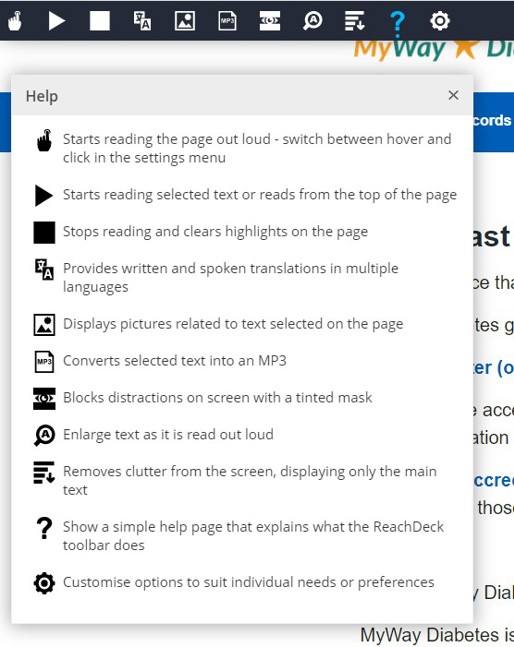
Listening to text on the page
ReachDeck can read text aloud in two ways.
Option 1: Hover to Speak
Select the Hover to Speak button
 on the toolbar.
Move your cursor to the beginning of the text.
Select the text area to start reading.
The text will be read aloud.
Option 2: Speak selected text
Select the Speak Selection button
 .
.Highlight the text you want to hear.
The selected text will be read aloud.
To stop the audio, select the Stop button
 on the toolbar.
Translating a webpage
ReachDeck can translate website content into 99 languages and read text aloud in 40 languages.
Select the Translation button
 .
.Choose a language from the list.
The webpage will automatically translate.
To hear the translated text spoken aloud, select the Play button
 .
.
Picture Dictionary
The Picture Dictionary shows images related to selected words.
Highlight a word on the page.
Select the Picture Dictionary button
 .
.Images related to the word will appear.
Downloading audio (MP3)
You can convert text on a webpage into an audio file.
Highlight the text you want to convert.
Select the MP3 (audio download) button
 .
.An audio file will be created that you can listen to later.
Screen mask
The Screen Mask helps reduce visual distractions.
Select the Screen Mask button
 .
.A coloured overlay will appear across the screen.
A clear reading area will highlight a small section of text.
This can help you focus on one part of the page at a time.
Text magnification
The Text Magnifier enlarges text as it is read aloud.
Select the Text Magnifier button
 .
.The text will appear larger on screen.
You can adjust the font, size and colour in the settings menu
 .
.
Simplifying a webpage
The Simplify feature removes images and other distractions.
Select the Simplify button
 .
.The page will display the main text only.
Changing your settings
Select the Settings button on the toolbar to personalise how ReachDeck works.
You can:
change highlight colours
turn text magnification on by default
adjust the size of magnified text
turn Hover to Speak on or off
change the speech speed
set Simplify as the default page view
highlight links on webpages
Learn more
Watch the video below for a demonstration of how to use ReachDeck.